> ## Documentation Index
> Fetch the complete documentation index at: https://docs.theprivateclubs.com/llms.txt
> Use this file to discover all available pages before exploring further.
# Install Private Clubs
> Add the Private Clubs MCP server to Claude, ChatGPT, Claude Code, Codex, Cursor, Grok, Perplexity, OpenClaw, Hermes or any other AI app
Private Clubs runs its MCP server at one address:
```text theme={"system"}
https://www.theprivateclubs.com/api/mcp
```
Add it under the server key `private-clubs`, with the display name Private Clubs. The server uses Streamable HTTP. Free, no account or API key needed. For pictures of each step, see the [setup page](https://www.theprivateclubs.com/mcp).
## Use the setup line
Paste this line into your AI app:
```text theme={"system"}
Set up the Private Clubs MCP for me: read https://www.theprivateclubs.com/mcp/setup.md and follow the steps for this app
```
Your app reads the setup steps on theprivateclubs.com and follows the section for itself.
* **Agent apps** (Claude Code, Codex, Cursor, OpenClaw and Hermes) show you each command or config change and run it once you agree. They add the server beside your other MCP servers and keep them.
* **Chat apps** (Claude, ChatGPT, Grok and Perplexity) cannot add a connector themselves, so they tell you the clicks.
## Choose your app
To set up Private Clubs by hand, pick your app. The [setup page](https://www.theprivateclubs.com/mcp) shows each app in three steps:
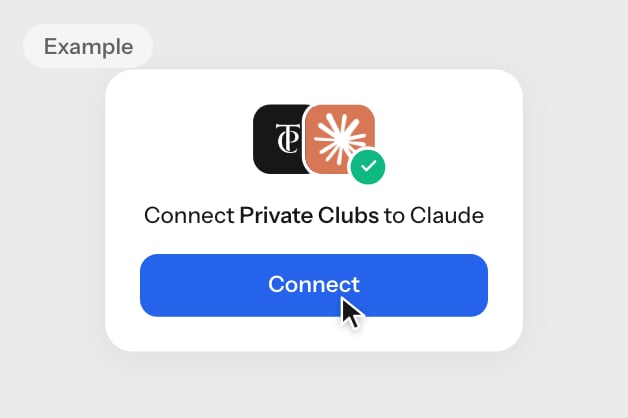
 Works on every Claude plan. Free holds one custom connector. On Team and Enterprise, an owner adds it in **Organization settings > Connectors**.
**With the plugin**
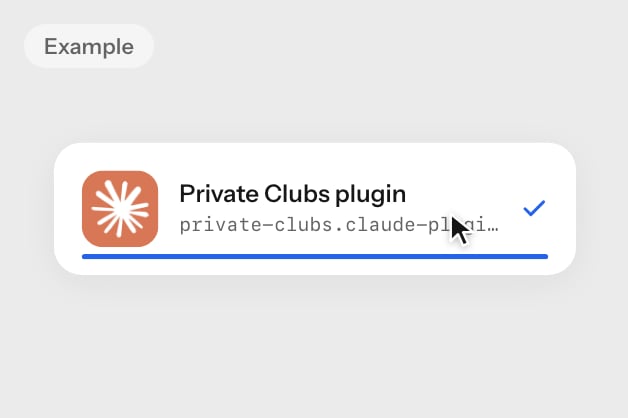
Download [`private-clubs.claude-plugin.zip`](https://www.theprivateclubs.com/mcp/private-clubs.claude-plugin.zip). It includes the Private Clubs skill and the MCP connection.
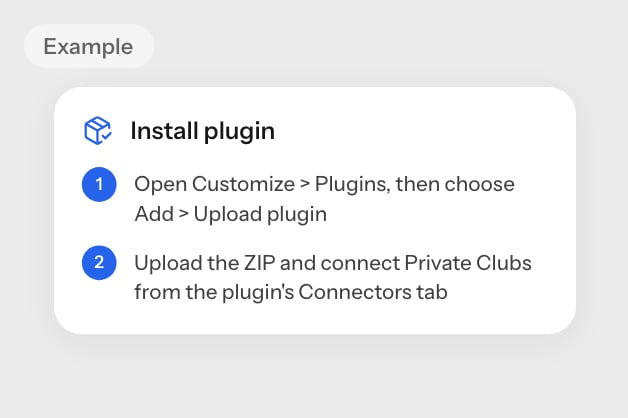
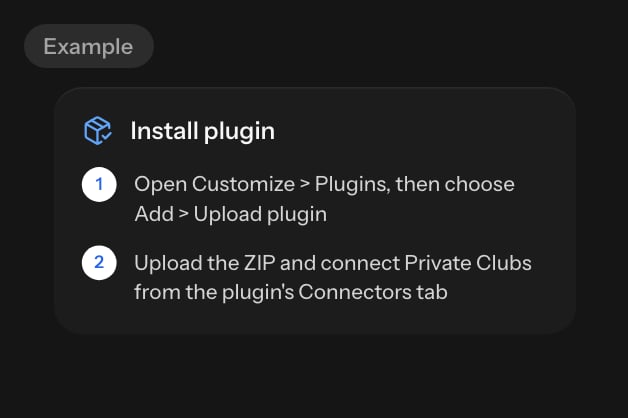
Open **Customize > Plugins**, choose **Add > Upload plugin** and upload the ZIP.
Open the plugin's **Connectors** tab and select **Connect**.
Select **Add**. Claude detects that no sign-in is needed.
Select **Connect** again.
In a chat, press **Use** on the plugin's connector.
**As a custom connector**
`https://www.theprivateclubs.com/api/mcp`
Open **Customize > Connectors**, select **+**, then **Add custom connector**. Name it Private Clubs, paste the address and select **Continue**.
Select **Add**, then ask Claude about a club.
Added Clubs before? Replace that older entry with Private Clubs.
`https://www.theprivateclubs.com/api/mcp`
Go to [chatgpt.com/plugins](https://chatgpt.com/plugins), select **+**, then **Add custom MCP server**.
Name it Private Clubs, paste the address, tick **I understand and want to continue**, then select **Create as a plugin**.
Private Clubs tools are then available in ChatGPT, free and without an account.
Added Clubs before? Replace that older entry with Private Clubs.
Needs Claude Code. User scope adds it to every project.
```bash theme={"system"}
claude mcp add --transport http private-clubs --scope user https://www.theprivateclubs.com/api/mcp
```
Start Claude Code. `/mcp` shows `private-clubs` connected.
Prefer the plugin? Upload the Claude plugin in Claude, as the Claude tab shows. The plugin syncs to Claude Code on the same account.
Added `clubs` before? Run `claude mcp remove clubs` first.
The Codex CLI, IDE extension and ChatGPT desktop app share this setup.
```bash theme={"system"}
codex mcp add private-clubs --url https://www.theprivateclubs.com/api/mcp
```
Start Codex and ask about a club.
**In the ChatGPT desktop app:** open **Settings > MCP servers**, then **Add server**. Name it `private-clubs`, choose Streamable HTTP, paste the address, then **Save** and restart.
**With the plugin:** download [`private-clubs.codex-plugin.zip`](https://www.theprivateclubs.com/mcp/private-clubs.codex-plugin.zip) and add the downloaded plugin in Codex. Start a new session to use Private Clubs.
Added `clubs` before? Run `codex mcp remove clubs` first.
Needs the Cursor app. The link opens it.
Select [Add to Cursor](cursor://anysphere.cursor-deeplink/mcp/install?name=private-clubs\&config=eyJ1cmwiOiJodHRwczovL3d3dy50aGVwcml2YXRlY2x1YnMuY29tL2FwaS9tY3AifQ%3D%3D).
Open a chat in Cursor and ask about a club.
**By hand:** add the `private-clubs` server inside `mcpServers` in `~/.cursor/mcp.json`, beside any servers already there. Create the file if it is missing.
```json ~/.cursor/mcp.json theme={"system"}
{
"mcpServers": {
"private-clubs": {
"url": "https://www.theprivateclubs.com/api/mcp"
}
}
}
```
**With the plugin:** extract [`private-clubs.cursor-plugin.zip`](https://www.theprivateclubs.com/mcp/private-clubs.cursor-plugin.zip) to `~/.cursor/plugins/local/private-clubs`. Reload Cursor and confirm Private Clubs under **Customize**.
Added `clubs` before? Replace that older entry with `private-clubs`.
Every Grok user can add it. Business and Enterprise admins add it for their team first.
`https://www.theprivateclubs.com/api/mcp`
Go to [grok.com/connectors](https://grok.com/connectors), select **New Connector**, then **Custom**.
Paste the address you copied.
Ask Grok about a club. Private Clubs tools are then available in Grok, free and without an account.
Added Clubs before? Replace that older entry with Private Clubs.
On Enterprise, an admin turns on member connectors first.
`https://www.theprivateclubs.com/api/mcp`
Open **Plugins** in the sidebar, select **Add custom**, **Connector**, then **Add MCP connector**.
Choose **Remote**, name it Private Clubs, paste the address and pick Streamable HTTP. Set Authentication to **None** and tick the box. Select **Add**, then select the card to turn it on.
Private Clubs tools are then available in Perplexity, free and without an account.
No **Plugins** in your sidebar? Use **Customize > Connectors**.
Added Clubs before? Replace that older entry with Private Clubs.
Needs OpenClaw, or use **Control UI > Settings > MCP > Add server**.
```bash theme={"system"}
openclaw mcp add private-clubs --url https://www.theprivateclubs.com/api/mcp --transport streamable-http
```
```bash theme={"system"}
openclaw mcp doctor private-clubs --probe
```
Added `clubs` before? Run `openclaw mcp remove clubs` first.
Needs Hermes Agent. The server goes in `~/.hermes/config.yaml`.
```yaml ~/.hermes/config.yaml theme={"system"}
mcp_servers:
private-clubs:
url: "https://www.theprivateclubs.com/api/mcp"
```
Run this in a running Hermes session:
```text theme={"system"}
/reload-mcp
```
Added `clubs` before? Replace that older entry with `private-clubs`.
After you install Private Clubs, [check it worked](#check-it-worked).
## Another app
Add a remote MCP server in your app's settings with these values:
| Setting | Value |
| - | - |
| Name | Private Clubs |
| Server key | `private-clubs` |
| Address | `https://www.theprivateclubs.com/api/mcp` |
| Transport | Streamable HTTP |
| Authentication | None |
## Replace an older entry
Added `clubs` before? It is the same server under an earlier name. Replace it with `private-clubs`, so your app does not show the tools twice.
In apps with a command line, remove the old entry first, then add Private Clubs as your app's tab shows:
```bash theme={"system"}
claude mcp remove clubs
codex mcp remove clubs
openclaw mcp remove clubs
```
In Cursor and Hermes, replace the `clubs` entry in the config file with the `private-clubs` entry. In Claude, ChatGPT, Grok and Perplexity, replace the older connector with Private Clubs.
## Check it worked
Start a new session if your app needs one, then ask:
```text theme={"system"}
Search clubs in Florida
```
The `search_clubs` tool answers with clubs and a link to each profile. No Private Clubs tools? See [Troubleshooting](/mcp/troubleshooting#private-clubs-tools-do-not-appear).
## Call the server without an app
You can call the server from a terminal. It is stateless, so a tool call needs no session and no `initialize` step. Send JSON-RPC over POST:
```bash theme={"system"}
curl -X POST https://www.theprivateclubs.com/api/mcp \
-H "content-type: application/json" \
-H "accept: application/json, text/event-stream" \
-d '{"jsonrpc":"2.0","id":1,"method":"tools/list"}'
```
The answer is JSON that lists the five tools and their input schemas. To run a tool, send `tools/call` with the tool's `name` and its `arguments` in `params`. A GET request returns 405, because the server answers POST only.
Next, see each tool's parameters in [Available tools](/mcp/tools), or fix a problem in [Troubleshooting](/mcp/troubleshooting).
This documentation is built and hosted on [Mintlify](https://mintlify.com), a developer documentation platform.
Works on every Claude plan. Free holds one custom connector. On Team and Enterprise, an owner adds it in **Organization settings > Connectors**.
**With the plugin**
Download [`private-clubs.claude-plugin.zip`](https://www.theprivateclubs.com/mcp/private-clubs.claude-plugin.zip). It includes the Private Clubs skill and the MCP connection.
Open **Customize > Plugins**, choose **Add > Upload plugin** and upload the ZIP.
Open the plugin's **Connectors** tab and select **Connect**.
Select **Add**. Claude detects that no sign-in is needed.
Select **Connect** again.
In a chat, press **Use** on the plugin's connector.
**As a custom connector**
`https://www.theprivateclubs.com/api/mcp`
Open **Customize > Connectors**, select **+**, then **Add custom connector**. Name it Private Clubs, paste the address and select **Continue**.
Select **Add**, then ask Claude about a club.
Added Clubs before? Replace that older entry with Private Clubs.
`https://www.theprivateclubs.com/api/mcp`
Go to [chatgpt.com/plugins](https://chatgpt.com/plugins), select **+**, then **Add custom MCP server**.
Name it Private Clubs, paste the address, tick **I understand and want to continue**, then select **Create as a plugin**.
Private Clubs tools are then available in ChatGPT, free and without an account.
Added Clubs before? Replace that older entry with Private Clubs.
Needs Claude Code. User scope adds it to every project.
```bash theme={"system"}
claude mcp add --transport http private-clubs --scope user https://www.theprivateclubs.com/api/mcp
```
Start Claude Code. `/mcp` shows `private-clubs` connected.
Prefer the plugin? Upload the Claude plugin in Claude, as the Claude tab shows. The plugin syncs to Claude Code on the same account.
Added `clubs` before? Run `claude mcp remove clubs` first.
The Codex CLI, IDE extension and ChatGPT desktop app share this setup.
```bash theme={"system"}
codex mcp add private-clubs --url https://www.theprivateclubs.com/api/mcp
```
Start Codex and ask about a club.
**In the ChatGPT desktop app:** open **Settings > MCP servers**, then **Add server**. Name it `private-clubs`, choose Streamable HTTP, paste the address, then **Save** and restart.
**With the plugin:** download [`private-clubs.codex-plugin.zip`](https://www.theprivateclubs.com/mcp/private-clubs.codex-plugin.zip) and add the downloaded plugin in Codex. Start a new session to use Private Clubs.
Added `clubs` before? Run `codex mcp remove clubs` first.
Needs the Cursor app. The link opens it.
Select [Add to Cursor](cursor://anysphere.cursor-deeplink/mcp/install?name=private-clubs\&config=eyJ1cmwiOiJodHRwczovL3d3dy50aGVwcml2YXRlY2x1YnMuY29tL2FwaS9tY3AifQ%3D%3D).
Open a chat in Cursor and ask about a club.
**By hand:** add the `private-clubs` server inside `mcpServers` in `~/.cursor/mcp.json`, beside any servers already there. Create the file if it is missing.
```json ~/.cursor/mcp.json theme={"system"}
{
"mcpServers": {
"private-clubs": {
"url": "https://www.theprivateclubs.com/api/mcp"
}
}
}
```
**With the plugin:** extract [`private-clubs.cursor-plugin.zip`](https://www.theprivateclubs.com/mcp/private-clubs.cursor-plugin.zip) to `~/.cursor/plugins/local/private-clubs`. Reload Cursor and confirm Private Clubs under **Customize**.
Added `clubs` before? Replace that older entry with `private-clubs`.
Every Grok user can add it. Business and Enterprise admins add it for their team first.
`https://www.theprivateclubs.com/api/mcp`
Go to [grok.com/connectors](https://grok.com/connectors), select **New Connector**, then **Custom**.
Paste the address you copied.
Ask Grok about a club. Private Clubs tools are then available in Grok, free and without an account.
Added Clubs before? Replace that older entry with Private Clubs.
On Enterprise, an admin turns on member connectors first.
`https://www.theprivateclubs.com/api/mcp`
Open **Plugins** in the sidebar, select **Add custom**, **Connector**, then **Add MCP connector**.
Choose **Remote**, name it Private Clubs, paste the address and pick Streamable HTTP. Set Authentication to **None** and tick the box. Select **Add**, then select the card to turn it on.
Private Clubs tools are then available in Perplexity, free and without an account.
No **Plugins** in your sidebar? Use **Customize > Connectors**.
Added Clubs before? Replace that older entry with Private Clubs.
Needs OpenClaw, or use **Control UI > Settings > MCP > Add server**.
```bash theme={"system"}
openclaw mcp add private-clubs --url https://www.theprivateclubs.com/api/mcp --transport streamable-http
```
```bash theme={"system"}
openclaw mcp doctor private-clubs --probe
```
Added `clubs` before? Run `openclaw mcp remove clubs` first.
Needs Hermes Agent. The server goes in `~/.hermes/config.yaml`.
```yaml ~/.hermes/config.yaml theme={"system"}
mcp_servers:
private-clubs:
url: "https://www.theprivateclubs.com/api/mcp"
```
Run this in a running Hermes session:
```text theme={"system"}
/reload-mcp
```
Added `clubs` before? Replace that older entry with `private-clubs`.
After you install Private Clubs, [check it worked](#check-it-worked).
## Another app
Add a remote MCP server in your app's settings with these values:
| Setting | Value |
| - | - |
| Name | Private Clubs |
| Server key | `private-clubs` |
| Address | `https://www.theprivateclubs.com/api/mcp` |
| Transport | Streamable HTTP |
| Authentication | None |
## Replace an older entry
Added `clubs` before? It is the same server under an earlier name. Replace it with `private-clubs`, so your app does not show the tools twice.
In apps with a command line, remove the old entry first, then add Private Clubs as your app's tab shows:
```bash theme={"system"}
claude mcp remove clubs
codex mcp remove clubs
openclaw mcp remove clubs
```
In Cursor and Hermes, replace the `clubs` entry in the config file with the `private-clubs` entry. In Claude, ChatGPT, Grok and Perplexity, replace the older connector with Private Clubs.
## Check it worked
Start a new session if your app needs one, then ask:
```text theme={"system"}
Search clubs in Florida
```
The `search_clubs` tool answers with clubs and a link to each profile. No Private Clubs tools? See [Troubleshooting](/mcp/troubleshooting#private-clubs-tools-do-not-appear).
## Call the server without an app
You can call the server from a terminal. It is stateless, so a tool call needs no session and no `initialize` step. Send JSON-RPC over POST:
```bash theme={"system"}
curl -X POST https://www.theprivateclubs.com/api/mcp \
-H "content-type: application/json" \
-H "accept: application/json, text/event-stream" \
-d '{"jsonrpc":"2.0","id":1,"method":"tools/list"}'
```
The answer is JSON that lists the five tools and their input schemas. To run a tool, send `tools/call` with the tool's `name` and its `arguments` in `params`. A GET request returns 405, because the server answers POST only.
Next, see each tool's parameters in [Available tools](/mcp/tools), or fix a problem in [Troubleshooting](/mcp/troubleshooting).
This documentation is built and hosted on [Mintlify](https://mintlify.com), a developer documentation platform.